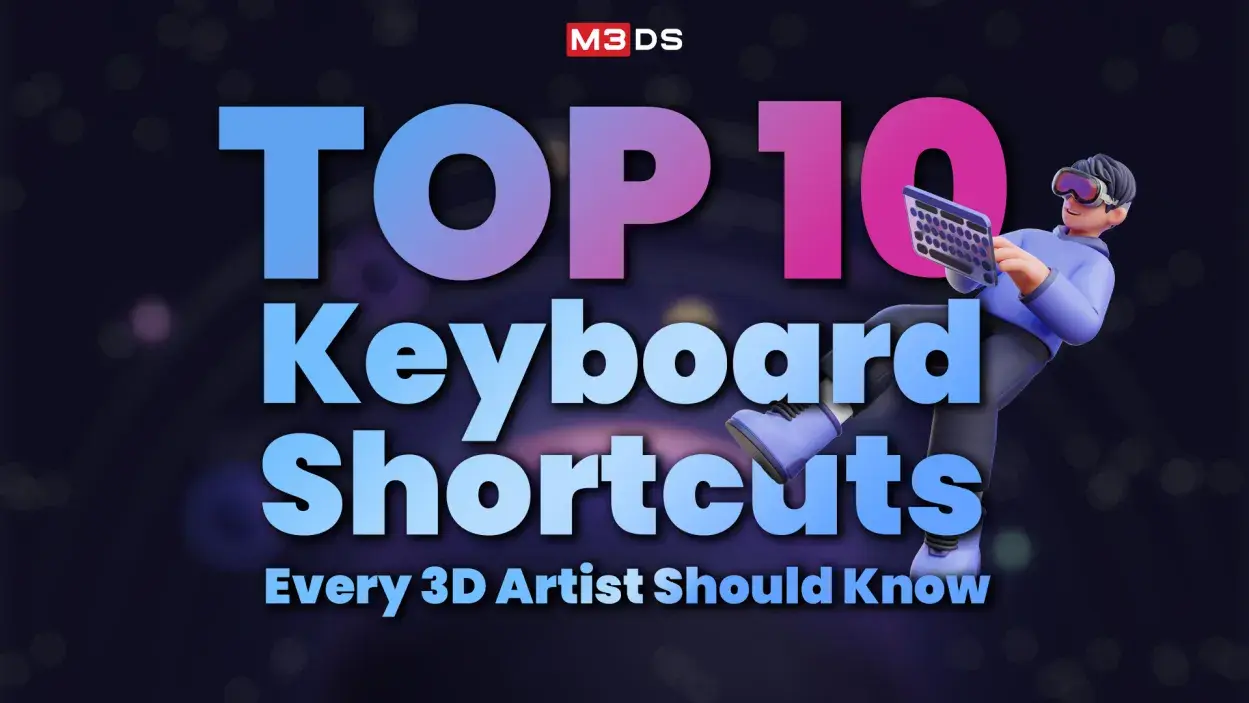
Top 10 Keyboard Shortcuts Every 3D Artist Should Know
Speed and accuracy are critical for any 3D artist working in animation, games, or visual effects. While strong artistic skills and technical knowledge matter, daily productivity often depends on how efficiently you interact with your software.
Keyboard shortcuts reduce repetitive mouse movement, minimize workflow interruptions, and help maintain creative momentum during long production hours. No matter which 3D software you use, Maya, 3ds Max, ZBrush, or Unreal Engine, many shortcuts follow similar logic.
Learning and using them consistently can save hours of work over time. In this article, we cover the top 10 keyboard shortcuts every 3D artist should know, along with practical reasons why they matter in professional pipelines.
Keyboard Shortcuts for Professional 3D Artists
1. Move, Rotate, and Scale Tools
Common shortcuts:
- Move: W
- Rotate: E
- Scale: R
These three shortcuts form the foundation of 3D navigation and object control. Almost every task, modeling, rigging, layout, or scene assembly, relies on these transforms.
Switching between these tools using the keyboard instead of tool panels keeps your workflow fluid. 3D modeling artists often switch between move, rotate, and scale hundreds of times per session. Memorizing these keys reduces hand travel and keeps focus on the viewport.
2. Duplicate Objects Instantly
Common shortcut:
- Duplicate: Ctrl + D (Windows)
Duplicating objects is essential when working with modular assets, environment props, or repeating design elements. Using a shortcut allows rapid asset creation without breaking concentration.
For example, when building architectural scenes or game environments, duplication helps maintain consistent proportions while saving time. Many artists pair duplication with transform shortcuts to place assets quickly.
3. Undo and Redo Actions
Common shortcuts:
- Undo: Ctrl + Z
- Redo: Ctrl + Y or Ctrl + Shift + Z
Mistakes are part of the creative process. Undo and redo shortcuts provide freedom to experiment without hesitation. Instead of manually correcting errors, artists can revert or restore actions instantly.
In sculpting and modeling workflows, undo becomes one of the most frequently used commands. Relying on keyboard input instead of menus improves speed and reduces frustration during revisions.
4. Frame Selection or View All
Common shortcuts:
- Frame Selected: F
- View All: A or Home (varies by software)
Large scenes can quickly become disorienting. Framing tools help artists focus on selected objects or zoom out to see the full scene.
This shortcut is particularly useful in animation and environment work, where scenes contain multiple assets across wide areas. A quick frame command brings clarity and prevents unnecessary viewport navigation.
Bring fantasy to life—learn step-by-step how to sculpt an epic dragon skull in 3D and level up your environment modeling skills.
5. Switch Between Component Modes
Maya Keyboard Shortcuts
- Vertex Mode: F9
- Edge Mode: F10
- Face Mode: F11
- Object Mode: F8
Component switching is central to modeling. Instead of clicking interface icons repeatedly, using keyboard shortcuts allows artists to modify geometry more efficiently.
Rapid transitions between vertices, edges, and faces are essential for clean topology and precise adjustments. This habit significantly improves modeling speed and accuracy.
6. Extrude Geometry
Common shortcut:
- Extrude: Ctrl + E (or equivalent)
Extrusion is a core modeling action used to add depth, structure, and complexity to meshes. Keyboard access to extrude tools speeds up hard-surface and organic modeling alike.
When combined with transform shortcuts, extrusion allows artists to build shapes quickly without relying on menus. Mastering this shortcut leads to smoother modeling sessions and cleaner results.
7. Hide and Unhide Objects
Common shortcuts:
- Hide Selected: H
- Unhide All: Shift + H
Complex scenes often contain overlapping meshes, reference objects, or temporary assets. Hide and unhide shortcuts help artists isolate areas of focus without deleting or moving objects.
This is especially useful during detailing, UV work, or rigging, where clarity is essential. Keyboard control keeps scene management fast and organized.
8. Snap Tools (Grid, Vertex, and Angle Snapping)
Common shortcuts:
- Snap Toggle: X, V, or C (software dependent)
Snapping ensures precise alignment when placing assets, adjusting pivots, or blocking out scenes. Keyboard toggles allow artists to activate snapping only when needed.
In game development and architectural modeling, snapping plays a major role in maintaining consistency and scale. Learning snap shortcuts prevents alignment errors and speeds up layout work.
9. Save and Incremental Save
Common shortcuts:
- Save: Ctrl + S
- Incremental Save: varies by software
Saving frequently is a professional habit. Keyboard shortcuts make saving second nature without interrupting workflow.
Incremental saves are especially important for long projects, allowing artists to revert to earlier versions if something goes wrong. Using keyboard commands reduces the risk of data loss during crashes or power failures.
Transform your ideas into immersive worlds—learn Unreal Engine blueprint secrets today!


10. Play and Stop Timeline
Common shortcuts:
- Play/Stop: Spacebar
For 3D animation artists, quick playback access is essential. The spacebar shortcut allows artists to preview motion instantly without touching the timeline controls.
Repeated playback checks help refine timing, spacing, and motion flow. Using the spacebar as an animate keyboard shortcut keeps work efficient and responsive, allowing artists to review motion instantly.
Why Keyboard Shortcuts Matter for Professional 3D Artists
Keyboard shortcuts are not just about speed; they support consistency and reduce physical strain. Long hours of mouse-heavy interaction can lead to fatigue, while keyboard usage distributes effort more evenly.
Studios expect artists to work efficiently under deadlines. Familiarity with shortcuts reflects professionalism and readiness for production environments. Over time, these small efficiency gains add up to significant time savings across projects.
Related Articles:
How Long Does It Take to Master Autodesk Maya?
10 Mistakes to Avoid in Character Design
3D Art vs Game Development: Which Career Path Is Right for You?
Boost Your 3D Skills with M3DS Academy
Speed, precision, and creativity go hand in hand learn to work smarter, not harder. At M3DS Academy, students master essential 3D keyboard shortcuts and professional workflows in software like Maya, ZBrush, and Unreal Engine. Through hands-on projects and one-on-one mentorship, students build efficiency and focus.
Apply shortcuts in real-world exercises, reduce repetitive tasks, and prepare for a professional career in 3D art and game development. Join M3DS Academy today and start creating like a pro!
Building Strong Shortcut Habits
Learning shortcuts is only the first step. Regular usage is what turns them into muscle memory. Artists should focus on a few shortcuts at a time and apply them consistently during daily work.
Many professionals customize shortcuts based on their workflow, but core commands remain essential regardless of software. The key is repetition and intentional practice.
Keyboard shortcuts may seem small, but they play a major role in a 3D artist’s growth. Mastering these essential commands allows artists to work faster, reduce repetitive actions, and stay focused on creative goals.
Whether modeling characters, building environments, or preparing assets for real-time engines, these shortcuts form the foundation of an efficient workflow. Artists who invest time in learning them early often see noticeable improvements in both speed and quality.